|
|
|
| Many PC problems can be resolved using Remote Assistance - providing you can connect to the internet. |
 |
|
|
For Quick Questions with Quick Answers.....
If you have any computer related question you are
struggling to find an answer to, PooterMan can help you.
 Just call and ask.
Some examples:
- How do I ......?
- Where do I find ......?
- What does ..... mean?
- Why is ..... happening?
- When should I .....?
|
 |
|
|
|
There are also 2 ways we can help you by using Remote Assistance. Both ways
require no setup by you, and it doesn't matter what version of Windows you are using, or
what your internet connection speed is (although obviously faster is better):
- Remote View - This enables the technician to connect to your computer and view your desktop.
Basically, we can see whatever is on your screen. This can be a big help, for example, when you have difficulty
explaining something displayed on your screen
As they say - a picture paints a thousand words.
Click here to see how Remote View works
- Remote Control - This is similar to Remote View but gives the technician the added ability
of being able to control your mouse and keyboard too. This is by far the quickest and safest way of identifying
and solving many PC problems, without you having to bring the machine in.
Click here to see how Remote Control works
|
|
| Remote View
This is a very simple procedure. There is just one small file to download and nothing to configure.
Connection can only be made at your request, and once broken, cannot be remade without you making another
connection request.
A secure server is used to connect your computer to PooterMan. Both you and PooterMan
must link to the SkyFex server at the same time.
Here's how it's done.....
- Call PooterMan on 0845 094 3297 (local call rate) to request assistance
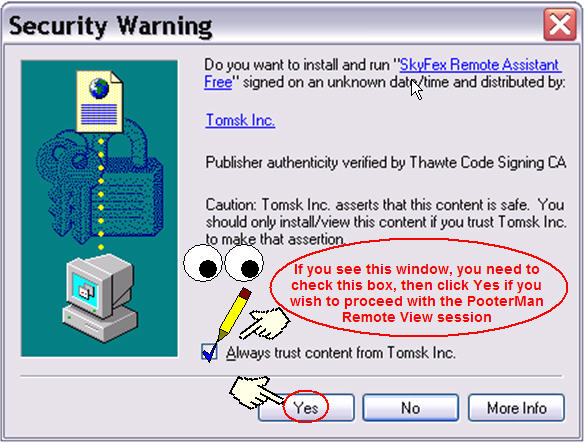
- PooterMan sends you a web link to the SkyFex server website where, depending on your browser security settings, you may see this window
- You will then see the next window where you will be given a 6 figure number
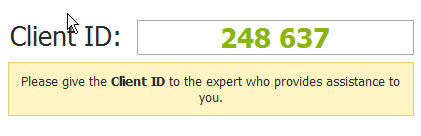
- You tell PooterMan the number, then he logs into the server and enters the number
- Within a few seconds - you are connected! PooterMan can now see whatever is on your screen in realtime.
- When you are finished with the help session, either you or PooterMan can exit the server.
(You can end the session at any time by clicking EXIT on the SkyFex page

For more info about SkyFex and/or to try this out without actually connecting to anyone
click here
http://www.skyfexfree.com,
then click the green "Get Assistance" button on the left side of the page to test it.
Please Note: You do not need to register on the SkyFex site. That is for technicians only.
|
|
| Remote Control
Windows XP and Windows 2000 users may wonder why we don't use the Remote Assistance software that is already
built into these operating systems. The answer is twofold. Explaining to a customer how to use it takes too long and
secondly, there can be difficulties in configuration of port forwarding for users with routers and some firewalls.
To make life a lot easier for all of us, PooterMan uses a small, two-part program called UltraVNC for Remote Control. This enables
the technician to assist any customer, regardless of which Windows operating system they are using, and with no router or
firewall problems.
All the technical stuff has been configured in advance by us, and for you, the customer, using this system is as simple as
clicking 3 buttons.
This downloads and runs a small piece of software called the Server (the filename is assist.exe) to your computer.
This is preconfigured to try and connect with the
Viewer which runs on the technician's computer.
When the Viewer is started it "listens" for the request being sent from the Server
on your PC.
Within seconds, the connection is made and you can sit back and watch your screen as the technician tackles
your problem.
Procedure
- Call PooterMan on 0845 094 3297 (local call rate) to request assistance
- Click the link you are given by the technician, but only when instructed to
If you are running a Windows 98 machine, you may be asked to download the
server file to your desktop.
When you have downloaded the file, WAIT until you are told to run it, then double-click on it ONCE ONLY.
- Click Run
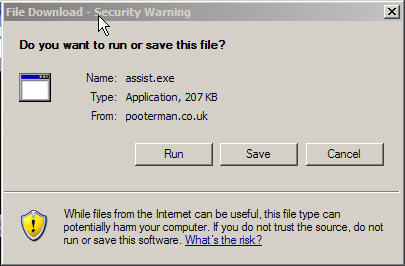
- Click Run (or Open)
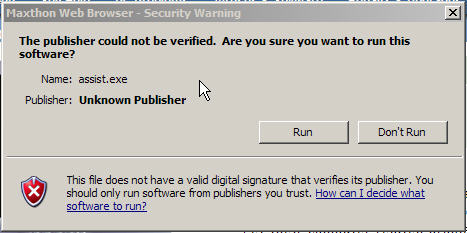
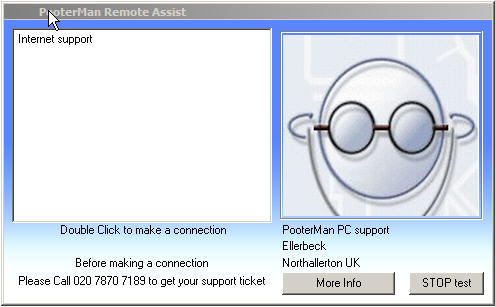
- You will then see this window very briefly - just wait - it now starts automagically and will disappear
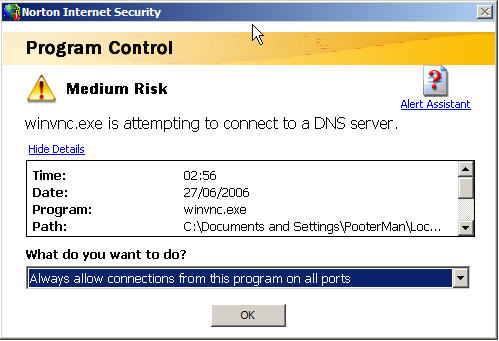
- If your firewall pops up, select Always allow connections from this program on all ports, then click OK
Please note that winvnc.exe is part of the Remote Assistance software and you MUST allow connection on all ports as shown below
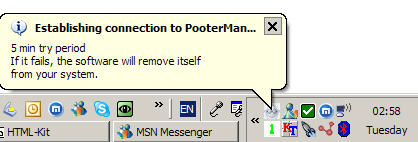
- You will see the PooterMan icon in your System Tray (near the clock) and the message in the balloon will be shown.
- If you choose to, you can close down the Server at any time by right-clicking on the PooterMan icon and clicking Close.
The software will then stop running and automatically delete itself from your computer.
For your security
-
The Server file that you download and run will start automatically and run for 4 to 5 minutes.
If it has not connected to the technician's computer by then, it will stop running and delete itself from your PC.
-
The technician cannot connect to, or control your computer unless you download and run the Server file when instructed to
by the technician, as both Server and Viewer must be running at the same time.
-
The Server cannot connect to anyone else's computer - only the
technician that you speak to, and only at your request.
- The Server file will automatically remove itself from your computer as soon as
the session ends. To start a new session, you must download and run the file again. This may be necessary if, for example,
you have to reboot your computer during the assistance session and then reconnect with the technician.
|
|
|
|